
TUTORIAL

How to Convert AVIF to JPG

Convert any AVIF image to JPG in five steps — free, in your browser, without installing software.

Open the free converter

No sign-up. Files are processed locally on your device.

STEPS 1–5

Convert your AVIF in five steps

  1. 1. Open the converter

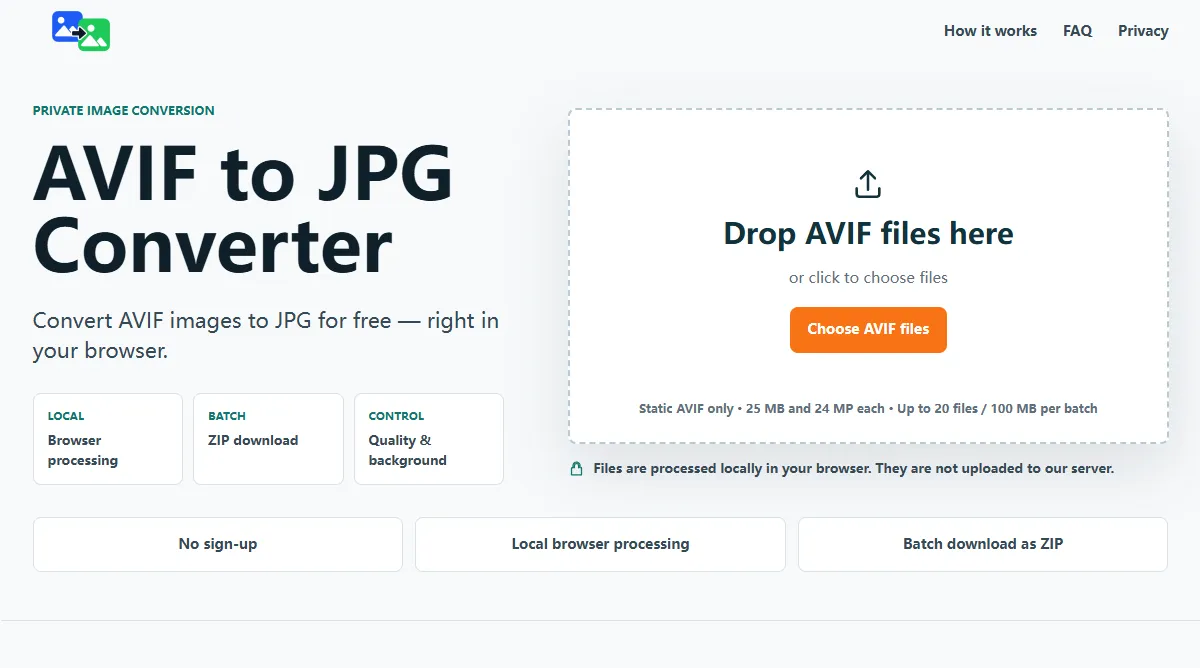
    Go to our free AVIF to JPG converter on any browser.

    AVIF to JPG converter upload area
  2. 2. Add your AVIF files

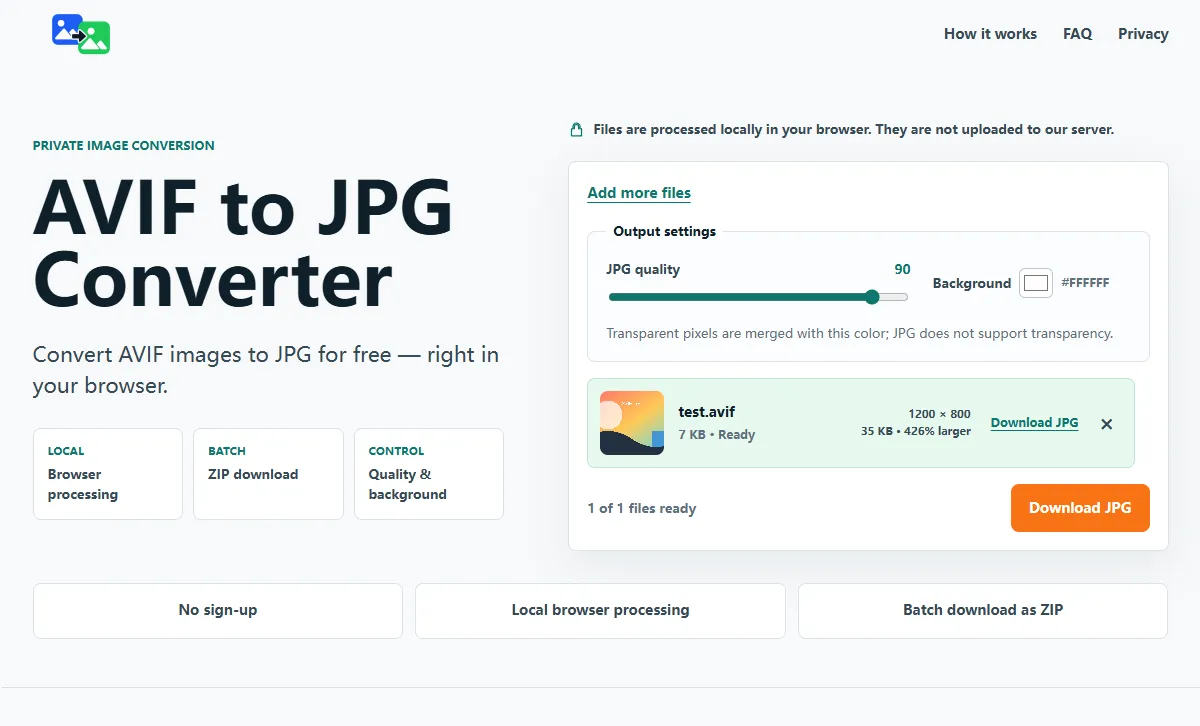
    Click Choose AVIF files or drag and drop them onto the upload area. You can add several files at once.

    Adding an AVIF file to the converter
  3. 3. Set JPG quality and background

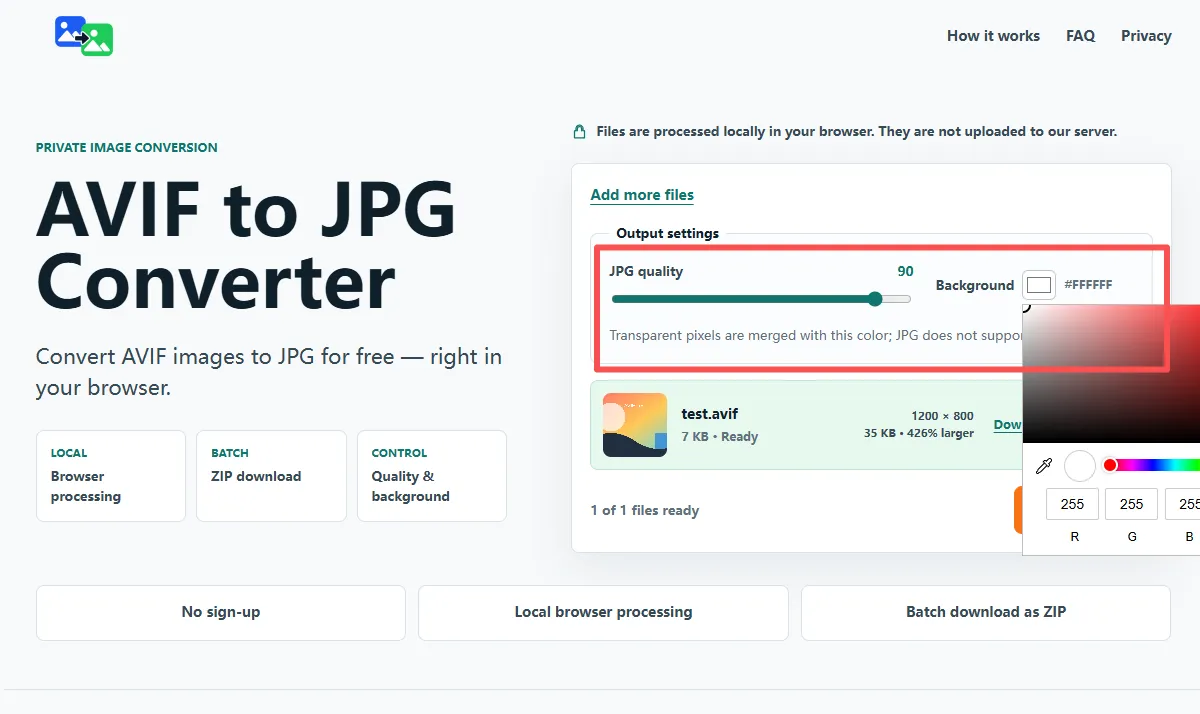
    Quality defaults to 90, which works for most images. If your AVIF has transparent areas, pick a background color — white is the default because JPG can’t store transparency.

    JPG quality slider and background color settings
  4. 4. Conversion starts automatically

    There is no Start button. Each file converts as soon as it is added, and you’ll see per-file progress in the queue.

    The conversion runs locally in your browser, so keep this tab open until it finishes.

  5. 5. Download your JPGs

    Download single files, or wait until all are ready and grab everything as a ZIP.

    If some files are still converting, the main button reads “Download ready (N)” and only downloads the finished files.

TRANSPARENCY

What about transparent AVIF images?

JPG does not support transparent areas. If your AVIF has alpha, the transparent pixels are merged with the background color you choose — white (#FFFFFF) by default. Your JPG will always be a flat rectangular image, never see-through.

For a photo or design where transparency is not required, the default white background is fine. Change the color in the converter settings before downloading if you prefer a different look.

If you genuinely need transparent areas in the output, use the AVIF to PNG converter instead — JPG can’t keep them.
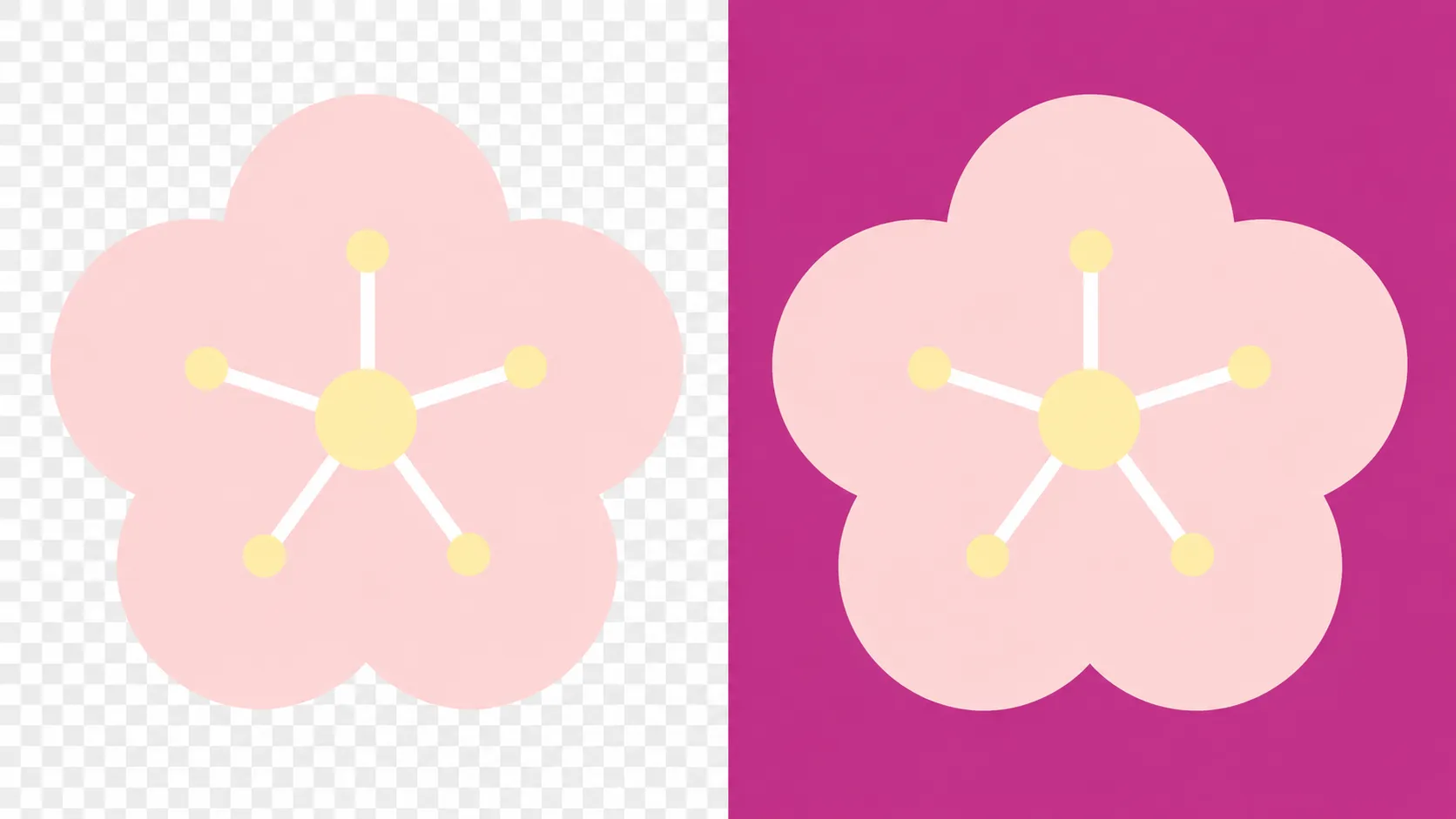
Transparent AVIF converted to JPG with white background

QUALITY

Which JPG quality should I choose?

The converter defaults to quality 90, which balances detail and file size for most images. Quality 80–90 is usually enough for sharing, while 90–100 keeps more detail for photos you may want to edit or print.

JPG is a lossy format, so it cannot promise zero quality loss. Use the output size shown next to each result to decide whether to lower the quality for a smaller file.

TROUBLESHOOTING

Common errors, solved

Your device can’t open AVIF
Your computer may not open AVIF natively. Convert it to JPG once and it will open in almost any app on Windows, macOS, or mobile.
An animated AVIF is rejected
Animated or multi-image AVIF files can’t become a single JPG. This guide covers static images only.
Conversion failed
The file may be invalid, over the size limit, or unreadable in your browser. Try a current browser or another AVIF file.
The output has a white background
That’s the background color JPG uses in place of transparency. Change it in the converter settings before downloading.

COMMON QUESTIONS

Good to know.

Is it really free?

Yes. You can convert supported static AVIF images without registration or payment, within the limits shown in the uploader.

Do you upload my images?

No. Conversion happens locally in your browser and your files are not uploaded to a conversion server. See our Privacy page for details.

Will I lose image quality?

JPG is a lossy format. The converter starts at quality 90, which balances detail and file size, and the page explains how to pick a good setting.

The JPG came out with a white background — is that wrong?

It’s normal. JPG has no transparency, so transparent pixels use the background color you select. Set the color before downloading. If you really need transparent areas, use the AVIF to PNG converter instead.

Can I convert several AVIF files at once?

Yes. Add multiple files and download them together as a ZIP once they are ready.

Do I need to install software?

No. The converter runs in modern browsers — Chrome, Edge, Firefox, and Safari work well.

READY WHEN YOU ARE

Ready to convert?

Open the converter and your AVIF is a JPG in seconds.

Convert AVIF to JPG